How to Install MKV Player on Windows 10 and 11
A clean, five-minute setup on Windows 10 or 11, including how to spot and decline optional offers in the installer.
Read fullMKV Player is a free, compact media player for Windows that opens MKV files straight away, along with AVI, MP4, MOV, FLV and MP3. There are no codec packs to track down and no crowded settings to learn. Choose a file and it plays.
Here you will find the current installer, a clear setup walkthrough and practical guides for subtitles, audio tracks and smoother playback.
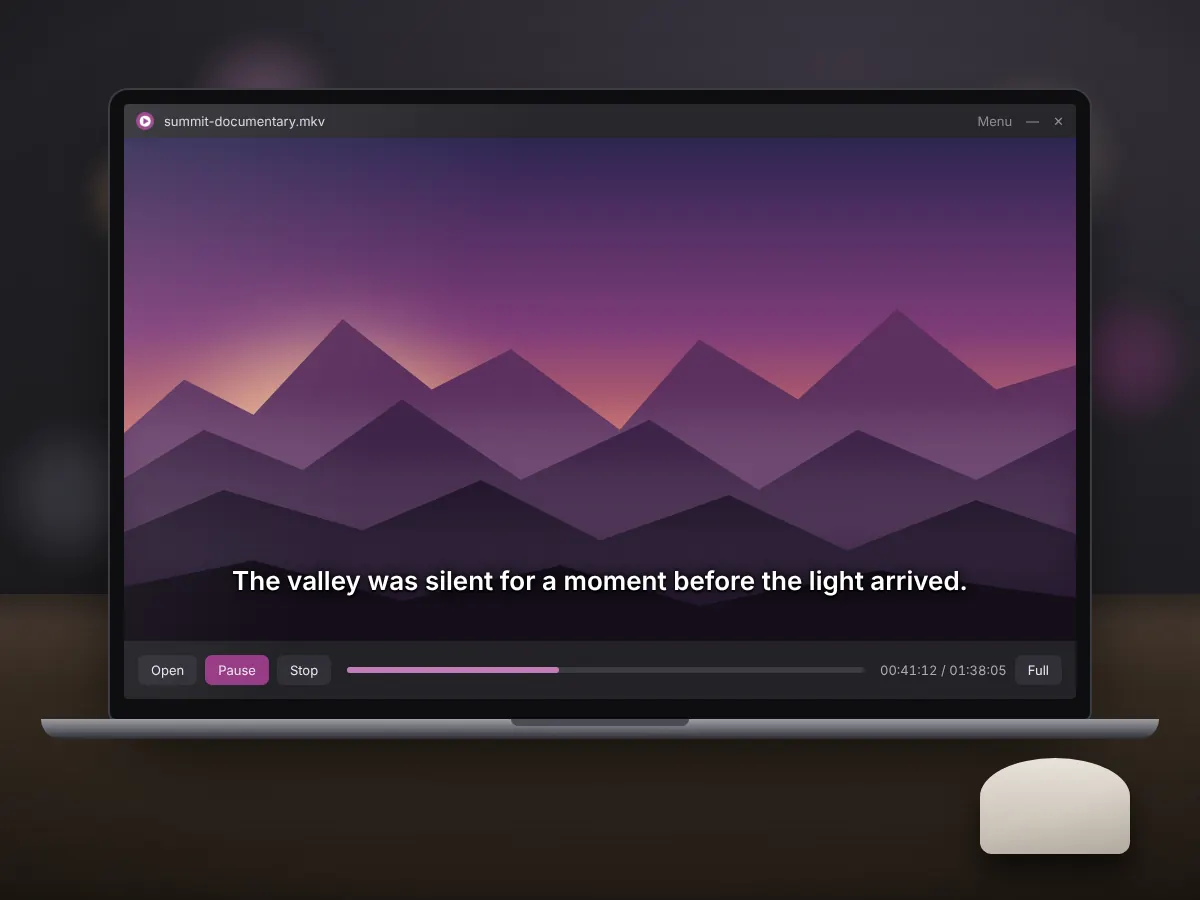
MKV stands for Matroska Video, an open and royalty-free multimedia container. A container is best thought of as a box. It does not decide how the picture is compressed; it holds the compressed streams and describes how they fit together.
That flexibility is what makes the format so popular. A single MKV can hold a video stream, several audio tracks in different languages, subtitle tracks, chapter markers and even attached fonts. The name comes from matryoshka, the Russian nesting doll, which suits a format built around layers inside layers.
Because the container can carry nearly any codec, playback depends on whether your player can decode each stream inside it. A dedicated MKV player bundles those decoders, so the video, the audio you choose and the subtitles you want all appear together without extra software.
MKV is common for film and series releases, recordings from capture software and archived home videos. Its tolerance of interruptions also means that a partly downloaded file can often still be watched up to the point where the download stopped.
holiday-film.mkv
MKV Player is named after its main format, yet it handles a useful range of other video and audio files. Support for an individual file also depends on the codec stored inside it, so an unusual encoder can occasionally need a different tool.
If a particular file will not open, check what it contains with a free tool such as MediaInfo. The report lists the video codec, audio format and subtitle type, which tells you whether the issue is the file itself or a stream that needs a different decoder. Our guide to playing MKV files explains how to read those details.

The latest Windows release. The setup file is under 1 MB and installs in under a minute.
The installer is ad-supported. Read each setup screen and decline any optional third-party offers you do not want.
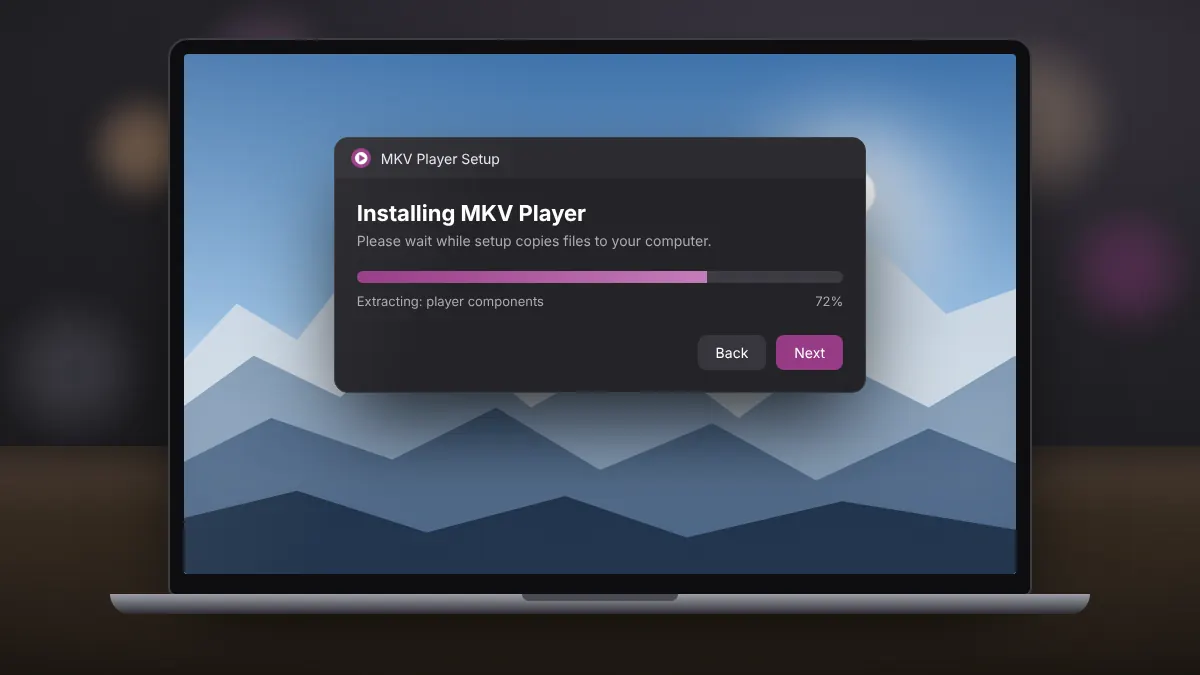
Setup follows the familiar Windows wizard. The only part that deserves attention is the offer screen, where the ad-supported installer may suggest extra software.
Use the download section above. The file goes straight to your Downloads folder.
Open it and confirm the Windows security prompt that asks to allow changes.
Untick or skip any third-party software. The player does not need it.
Launch MKV Player, choose a file or drag one onto the window, and watch.
Want screenshots and troubleshooting tips? The full installation guide covers every screen in detail.
After setup, it is worth taking one more minute to make MKV Player the default app for MKV files. Right-click any MKV in File Explorer, choose Open with, select the player and set it to always be used. From then on, a double-click on any Matroska video opens it directly, and you can extend the same choice to AVI, MOV or FLV files from Windows Settings.
It is not trying to be an all-in-one media centre. MKV Player focuses on opening Matroska files reliably and keeping the interface uncluttered, which is exactly what most people need when a video will not play.
Matroska files open directly with the player's built-in decoders, so there is no codec pack to install or keep updated.
Beyond MKV, it handles AVI, MP4, MOV, FLV, MPG, VOB and DivX video, plus MP3 audio, from one interface.
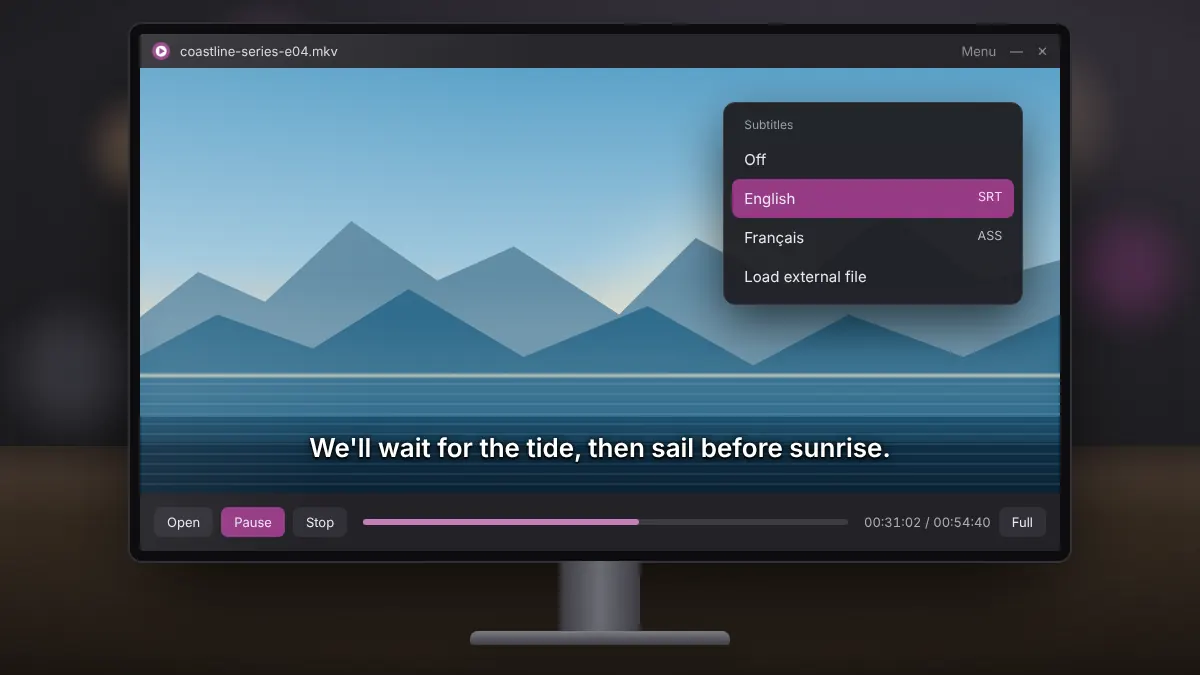
Embedded subtitle tracks and external SRT files can be shown on screen, with options to adjust how they appear.
Queue a full season, a set of music videos or event recordings, then save the list and come back to it later.
A small download and a modest memory footprint mean it starts quickly and runs comfortably on older laptops.
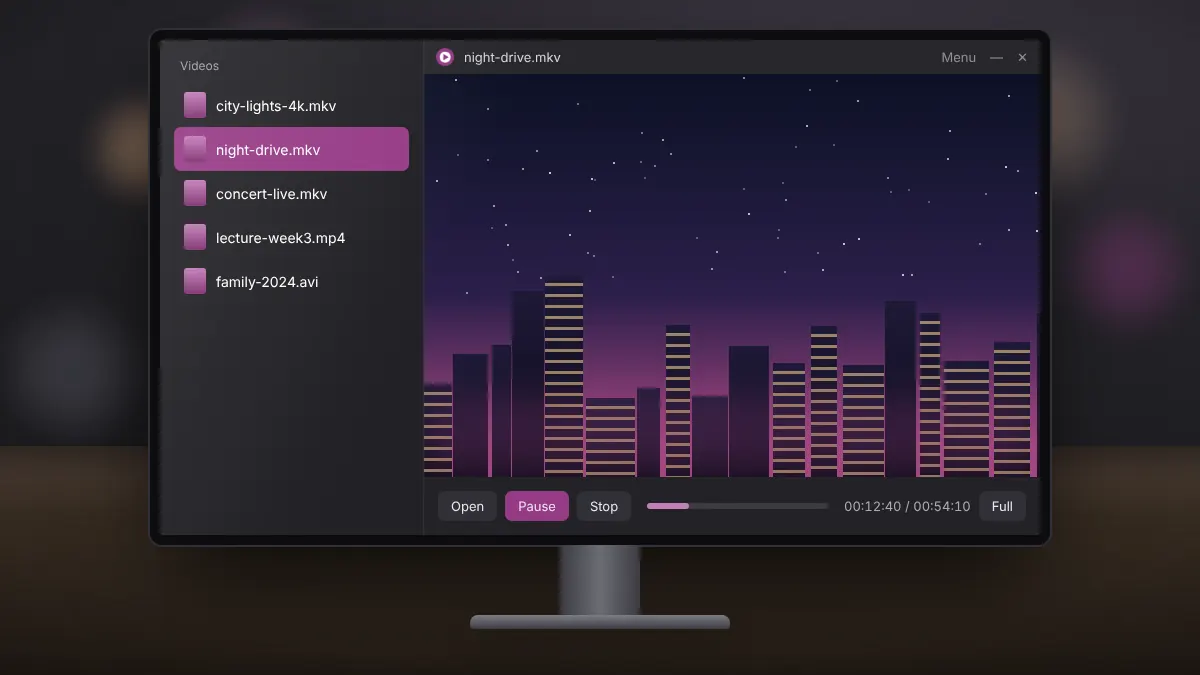
Playback controls are labelled with words rather than symbols, which makes the player easy for first-time users.
Register the player for MKV and other formats so your videos open in it with a double-click in File Explorer.
The player costs nothing. The installer is ad-supported, and any optional offers it shows can be declined.
In daily use, that focus shows. The window opens quickly, the controls are where you expect them, and the menu holds only the options you are likely to change: subtitles, audio tracks, playlists and file types. For anyone who watches downloaded films, recorded lectures or family videos on a laptop, that simplicity is the main reason to keep MKV Player installed.
Large all-in-one players are powerful, and Windows 11 now opens many MKV files on its own. A focused player still has clear advantages when you simply want your videos to work.
If you need DVD or Blu-ray menus, video effects or network streaming, a larger player is the better fit. For everyday viewing of MKV and the other common formats, MKV Player covers the job with less to configure.
There is also a practical upside to keeping a small, dedicated player alongside whatever else you use. When a file refuses to open in your usual app, MKV Player gives you a quick second opinion: if it plays here, the file is fine and the other program lacks a decoder; if it fails here too, the file is probably incomplete or damaged. That simple test saves a lot of guesswork before you start changing settings or downloading the video again.
Free software is easiest to trust when you install it with a little care. These habits apply to MKV Player and to any other free Windows program.
Short, practical articles for the questions people ask most, from first setup to subtitles and high-resolution playback.
A clean, five-minute setup on Windows 10 or 11, including how to spot and decline optional offers in the installer.
Read fullWhy some MKV files refuse to open in Windows, and three reliable ways to watch them without installing codec packs.
Read fullEmbedded tracks, external SRT files, out-of-sync timing and readability, all explained in plain terms.
Read fullMKV Player runs on modest hardware. The figures below are practical recommendations for smooth playback rather than strict minimums; higher resolutions and newer codecs ask more of your computer.
| Component | Recommended |
|---|---|
| Operating system | Windows 11, 10, 8.1 or 7 (32-bit or 64-bit) |
| Processor | Dual-core 1.5 GHz for 1080p; quad-core or a GPU with hardware decoding for 4K |
| Memory | 2 GB RAM, 4 GB recommended |
| Storage | About 20 MB for the program, plus space for your videos |
| Graphics | Any DirectX-compatible graphics with an up-to-date driver |
| Display | 1280 × 720 or higher |
Quick answers about MKV Player, MKV files and common playback questions.
Yes. MKV Player is free to download and use for personal viewing. The installer is ad-supported and may present optional third-party offers, which you can decline during setup without affecting the player.
It runs on Windows 11, Windows 10, Windows 8.1 and Windows 7, on both 32-bit and 64-bit systems. There is no official version for macOS, Linux or Android.
No. MKV Player includes the decoders needed for the codecs most commonly found in MKV files. Avoiding separate codec packs also prevents conflicts with other video software on your PC.
Yes. It opens AVI, MP4, MOV, FLV, MPG, VOB and DivX video as well as MP3 audio. Whether a specific file plays also depends on the codec used inside it.
Open the video, then choose a subtitle track from the player menu. For an external SRT file, give it the same name as the video and keep both in the same folder, or load it manually from the subtitle options.
If the file contains more than one audio track, you can select another one from the player menu during playback. To make a language the default permanently, change the default track flag with the free tool MKVToolNix.
Stutter usually means the computer is struggling to decode a high-resolution or HEVC file. Close background programs, update your graphics driver, play the file from an internal drive and use a performance power mode on laptops.
Neither format improves picture quality on its own, as both are containers. MKV supports more audio, subtitle and chapter options, while MP4 is more widely compatible with phones, TVs and browsers.
Right-click an MKV file, choose Open with, then Choose another app, select MKV Player and set it to always open MKV files. You can also change defaults in Windows Settings under Apps and Default apps.
No. mkvplayer.org is an independent guide and download resource. It is not affiliated with the developer of MKV Player. The installer linked here is the publicly distributed release of the software.