 MKV Player
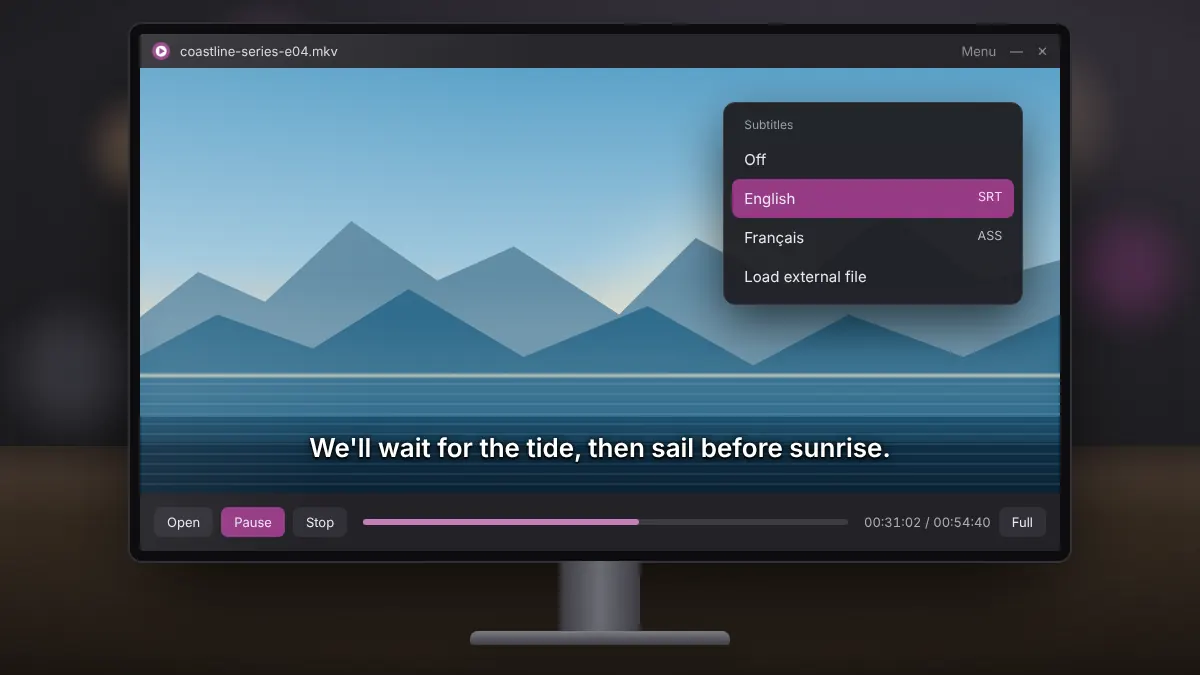
Subtitles are one of the main reasons people choose MKV. A single file can carry subtitles in several languages, and you can turn them on, off or switch between them without touching the video itself. Here is how subtitles work in Matroska files and how to get them showing correctly.
Embedded versus external subtitles
Embedded subtitles live inside the MKV file as separate tracks. They are usually in SRT (plain text) or ASS/SSA (styled text) format, and occasionally as image-based PGS subtitles taken from Blu-ray discs.
External subtitles are separate files, most often ending in .srt, stored next to the video. They are common when you download subtitles separately or create your own.
Showing embedded subtitles
Open the video in MKV Player and look in the player menu for the subtitle options. Embedded tracks are listed by language or by the name the file creator gave them. Choose one and it appears on screen. If the list is empty, the file has no embedded subtitle tracks.
Loading an external SRT file
The simplest method is to give the subtitle file exactly the same name as the video, apart from the extension. For example, holiday-2025.mkv and holiday-2025.srt in the same folder. Most players, including MKV Player, detect a matching file automatically. If it does not appear, load it manually from the subtitle options.
Fixing subtitles that are out of sync
When lines appear too early or too late, the subtitle file was usually made for a slightly different version of the video, for instance one with a different intro length. Two fixes work well:
- Find a subtitle file that matches your exact release. The file name often mentions the source and frame rate.
- Use a free editor such as Subtitle Edit to shift all lines by a set number of seconds, then save the corrected file.
Strange characters instead of letters
If accented letters show as symbols, the SRT file uses a different text encoding. Open it in a text editor that supports encodings, save it as UTF-8, and reload it in the player.
Making subtitles easier to read
Readable subtitles have enough size and contrast, especially on a TV or a bright scene. If your player offers font size and outline settings, a slightly larger font with a dark outline works well against most backgrounds. Styled ASS subtitles carry their own fonts and positions, so their appearance is set by the file creator.
Summary
Embedded tracks are a menu choice away, matching file names handle external SRT files, and timing or encoding problems have quick fixes. Once set up, subtitles in MKV are the most flexible of any common video format.