 MKV Player
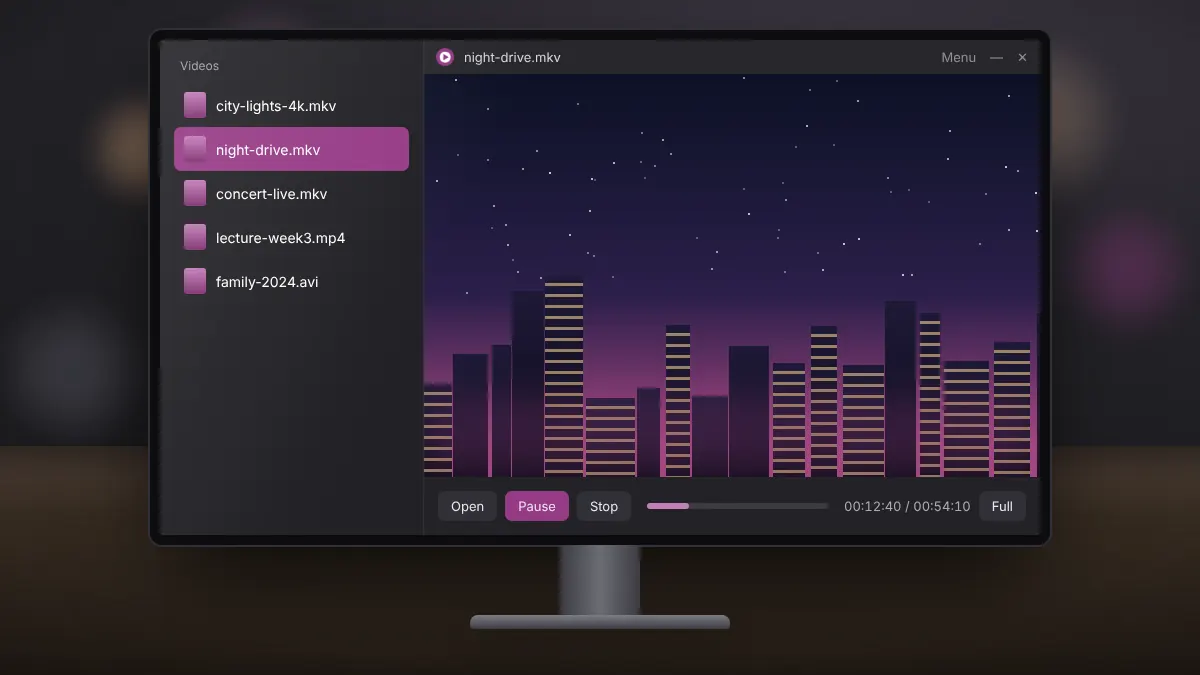
MKV is one of the most common formats for films, series and home recordings, yet many people still double-click an MKV file and see an error, a black window or audio with no picture. The reason is rarely the file itself. It usually comes down to which decoders your player has access to.
Why MKV files fail to open
An MKV file is a container. It holds one or more video streams, audio streams, subtitles and chapter markers, each encoded with its own codec. Opening the container is easy; decoding what is inside is the hard part. If your player understands the container but not, for example, the HEVC video stream or the DTS audio inside it, you get partial or broken playback.
Older versions of Windows Media Player did not handle Matroska at all. Newer Windows releases have improved, but support for specific codecs can still depend on optional extensions from the Microsoft Store.
Option 1: Use a player with built-in decoders
The most dependable fix is a player that ships with its own decoders. MKV Player is built for exactly this. Install it once and it handles the container and the common codecs found inside MKV files, so there is nothing else to configure.
- Install MKV Player using the download on our homepage.
- Open the player and choose your file, or drag it onto the window.
- If the file contains several audio or subtitle tracks, pick the ones you want from the player menu.
Option 2: The built-in Windows Media Player
On an up-to-date Windows 11 PC, the modern Media Player app opens many MKV files. Results vary with the codecs used. If you see video but hear nothing, or the reverse, the file probably uses a codec that Windows does not decode on its own.
Option 3: Avoid codec packs where possible
Codec packs install a large set of system-wide decoders. They can work, but they also change how every program on your PC handles video, and conflicts between packs are a frequent cause of crashes and stutter. A self-contained player keeps everything inside one application, which is far easier to remove or update.
Check what is inside a file
When a single MKV refuses to play, it helps to know what it contains. Free tools such as MediaInfo show the video codec, resolution, audio format and subtitle types. If the report shows an unusual codec, you will know the issue lies with that stream rather than with Matroska in general.
Quick checklist
- Use a player with its own decoders, such as MKV Player.
- Keep Windows and your graphics driver up to date.
- Skip codec packs unless you have a specific reason to use one.
- Test a second MKV file to rule out a damaged download.
With a dedicated player installed, MKV becomes as ordinary as any other video format: open it and watch.