 MKV Player
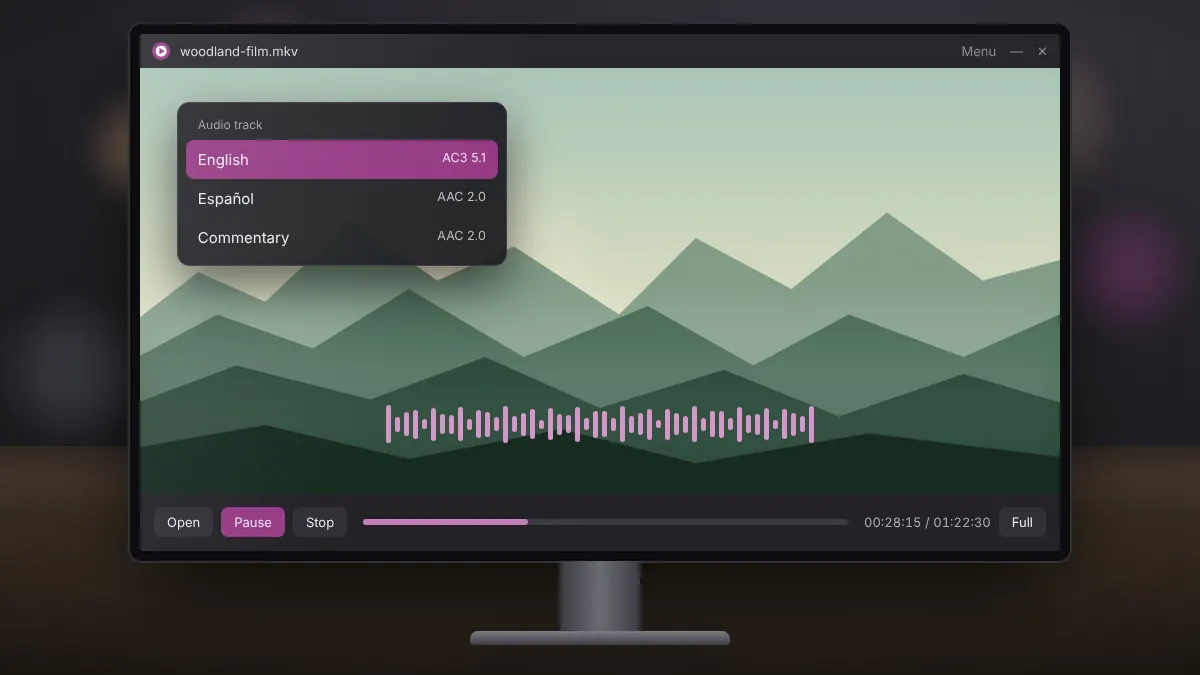
One MKV file can hold several audio tracks: the original language, a dubbed version, a director's commentary, or the same soundtrack in both surround and stereo. Knowing how to choose between them saves you from keeping multiple copies of the same film.
How audio tracks are stored
Each audio track in a Matroska file has its own codec, channel layout and language tag. Common formats include AAC, AC3 (Dolby Digital), E-AC3, DTS, FLAC and Opus. A track also has a default flag, which tells players what to select when the file opens.
Choosing a track while watching
In MKV Player, open the player menu while the video is running and look for the audio options. Available tracks are listed by language or name. Select a different one and playback switches immediately, keeping your position in the video.
If the tracks are only labelled Track 1 and Track 2, the file creator did not add language tags. Try each one briefly to find the version you want.
Setting a default track permanently
If you always want the same language, change the default flag inside the file. The free tool MKVToolNix does this without re-encoding:
- Open the MKV file in MKVToolNix GUI.
- Select your preferred audio track and set Default track flag to Yes.
- Set the same flag to No on the other audio tracks.
- Start multiplexing to write a new file. It takes seconds because nothing is re-encoded.
No sound on one track
If one track plays silently while others work, the codec may not be supported by your current decoder, or the track may carry surround channels your speakers do not receive. Switching to the stereo version of the same language is the quickest fix. Updating your audio driver and checking the Windows sound output device also helps.
Surround sound on stereo speakers
A 5.1 track played on headphones or laptop speakers is mixed down to two channels. Dialogue can sound quiet because it sits mostly in the centre channel. When a stereo track is available, it is often clearer on small speakers.
In short
Switch tracks from the player menu while watching, set a default with MKVToolNix for files you revisit, and choose stereo tracks on small speakers for clearer dialogue.