 MKV Player
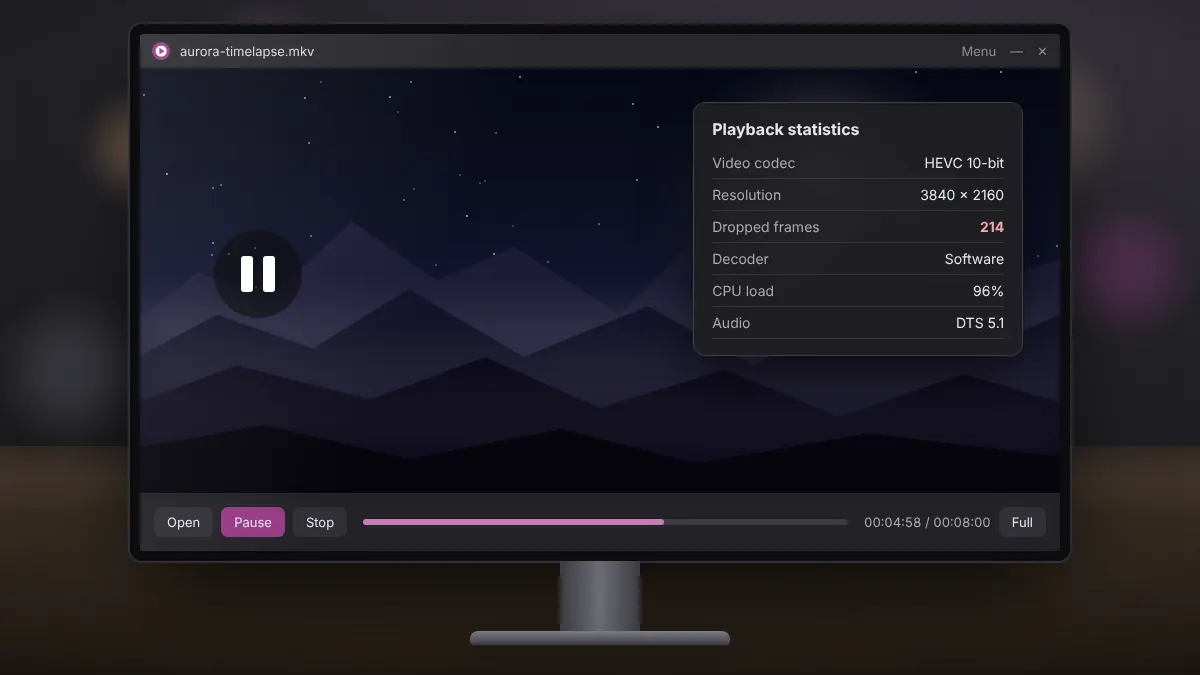
Most MKV playback issues fall into a handful of patterns, and each has a likely cause. Work through the section that matches what you see, starting with the quickest checks.
Video stutters or drops frames
Stutter usually means the computer cannot decode the video fast enough. High-resolution HEVC (H.265) files are the most demanding.
- Close browsers and other heavy programs while watching.
- Plug in your laptop and switch Windows to a balanced or high performance power mode.
- Update your graphics driver from the manufacturer's site, since newer drivers improve hardware decoding.
- Copy the file to your local drive if it plays from a USB stick or network share.
Picture but no sound
Check the simple things first: the Windows volume mixer, the selected output device and the player volume. If those are fine, the audio track probably uses a codec or channel layout your setup does not handle. Switch to another audio track, preferably a stereo one, from the player menu.
Sound but a black screen
A black screen with working audio points to a video codec issue or a graphics driver problem. Try the file in MKV Player if you have been using another app, update your graphics driver, and test another MKV to see whether the problem is limited to one file.
Audio out of sync
If lips and voices drift apart, first restart playback; a brief stall can throw sync off temporarily. If the delay is constant from the start, the file itself was muxed with an offset. MKVToolNix lets you set an audio delay in milliseconds and write a corrected file without re-encoding.
Seeking does not work or the file stops early
An MKV that plays for a while and then stops, or refuses to jump forward, is often incomplete. Compare its size to the expected size, or download it again. Remuxing the file with MKVToolNix can rebuild the index that seeking relies on.
The player crashes on one file
Crashes tied to a single file suggest an unusual stream, such as a rare subtitle format or a corrupted attachment. Removing the problem track with MKVToolNix often solves it.
A short troubleshooting order
- Test a second MKV file.
- Check volume, output device and selected audio track.
- Update Windows and the graphics driver.
- Close background apps and use a performance power plan.
- Remux or re-download the problem file.
Following this order resolves the large majority of MKV issues without technical tools, and the remaining cases usually come down to a damaged or unusual file.