 MKV Player
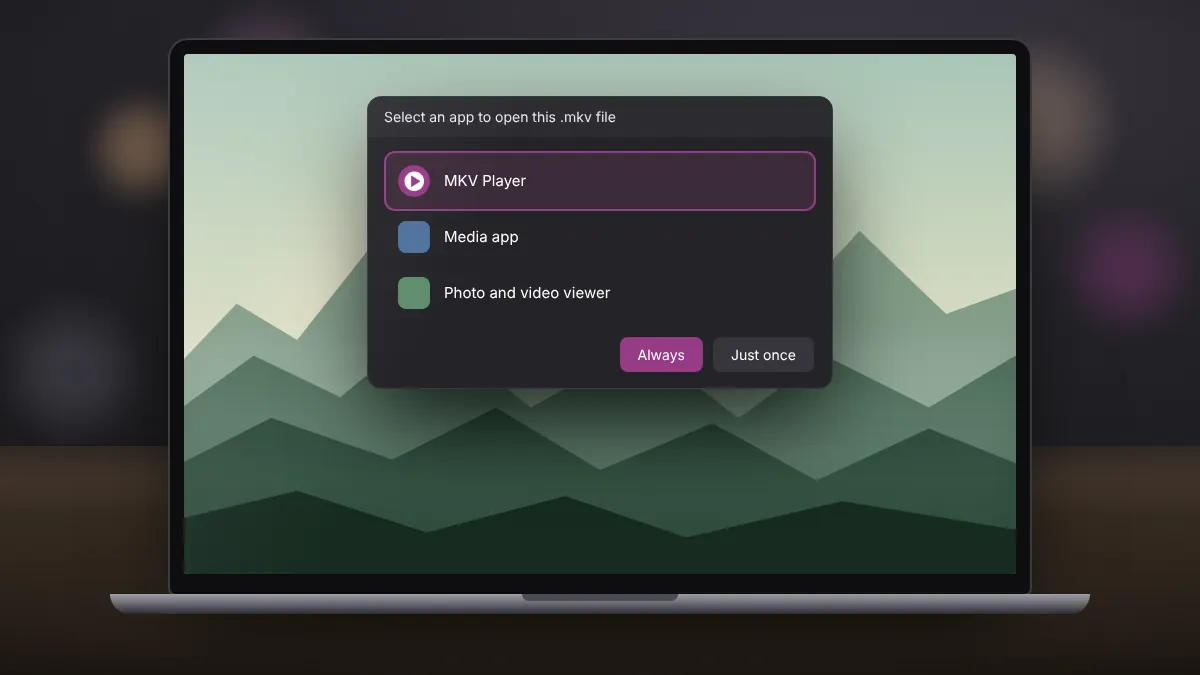
After installing a new player, Windows may still open MKV files in the app it used before. Setting a default takes less than a minute and means every MKV file opens in MKV Player with a double-click.
Method 1: From File Explorer
- Right-click any MKV file and choose Open with, then Choose another app.
- Select MKV Player from the list. If it is missing, look further down for more apps or browse to its folder in Program Files.
- Choose Always on Windows 11, or tick Always use this app to open .mkv files on Windows 10.
Method 2: Through Windows Settings
On Windows 11, go to Settings > Apps > Default apps, type .mkv in the search box at the top, and set MKV Player as the app for that file type. On Windows 10, go to Settings > Apps > Default apps and choose Choose default apps by file type, then find .mkv in the list.
This screen is also the place to set other formats, such as .avi, .mov or .flv, if you would like MKV Player to handle them too.
Method 3: The player's own file association option
MKV Player includes file association settings in its menu. Selecting the formats there registers the player with Windows. On Windows 10 and 11, you may still need to confirm the choice in Settings, because Windows requires default app changes to be approved by the user.
Changing your mind
To return to another player, repeat any of the methods above and pick a different app. Uninstalling MKV Player also removes its associations, and Windows will ask which app to use next time you open an MKV.
Thumbnails in File Explorer
Default app settings control which program opens a file, not whether File Explorer shows video thumbnails. Thumbnail support for MKV comes from Windows itself or from separate thumbnail extensions, so a missing preview does not mean the association failed.
With the default set, MKV files behave like any other video on your PC: double-click and they play.