 MKV Player
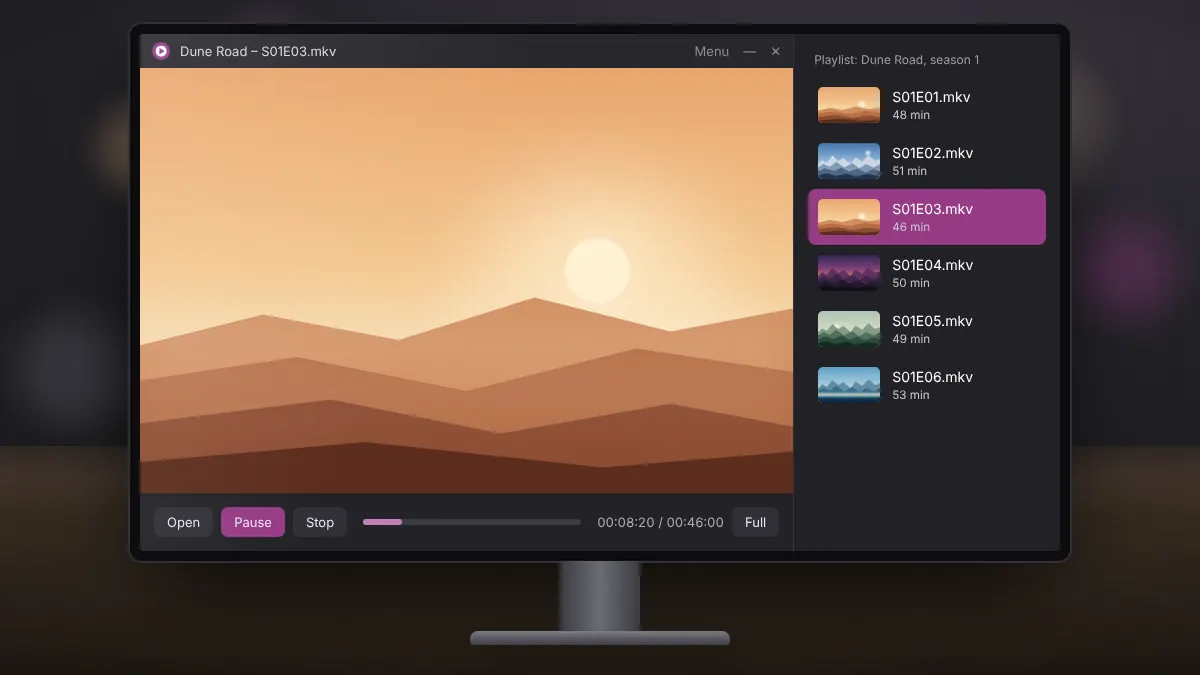
Playlists turn MKV Player from a single-file viewer into a simple media library. They are ideal for watching a series in order, running a set of music videos or lining up recordings from an event.
Start with tidy file names
Players sort playlists by file name, so consistent naming saves effort. Use leading zeros and a clear pattern:
- Series S01E01.mkv, Series S01E02.mkv and so on
- 01 Opening.mkv, 02 Interview.mkv for event footage
Without leading zeros, episode 10 can appear before episode 2 in an alphabetical list.
Adding files to a playlist
Open the playlist from the player menu, then add files or drag a selection from File Explorer straight into it. You can add a whole season in one move by selecting every episode in the folder first. MKV Player accepts a mix of formats, so MKV, MP4, AVI and MP3 files can share one list.
Reordering and removing items
Drag items up or down to change the order, or remove those you have already watched. Playback continues from one item to the next automatically.
Saving playlists for later
Save the list when it is ready. A saved playlist only stores the location of each file, not the files themselves, so it stays tiny. If you move or rename the files, update the playlist so it can find them again.
Ideas that work well
- A season per playlist: resume exactly where your evening ended.
- Background music: combine MP3 files and concert videos for a long listening session.
- Presentations: queue video clips for a talk so each starts on time.
- Family recordings: group clips by year for quick viewing at gatherings.
When files go missing
If an entry shows an error, the file was moved, renamed or stored on a drive that is no longer connected. Reconnect the drive or re-add the file, then save the playlist again.
A few minutes spent naming and organising files gives you playlists that run smoothly for months.